Set up a Ravenna triage channel in Slack so your team can review, assign, and act on incoming tickets from a single private channel.
A triage channel is a private Slack channel where mirrors of every new request land, so your team has one place to track, claim, and act on incoming work without leaving Slack. Each workspace has one.Responders can take the same actions here that they can in Ravenna or in a public request channel. Everything syncs back to the original thread and to the ticket.Time: about 5 minutes.
Interactive walkthrough
Step-by-step
1
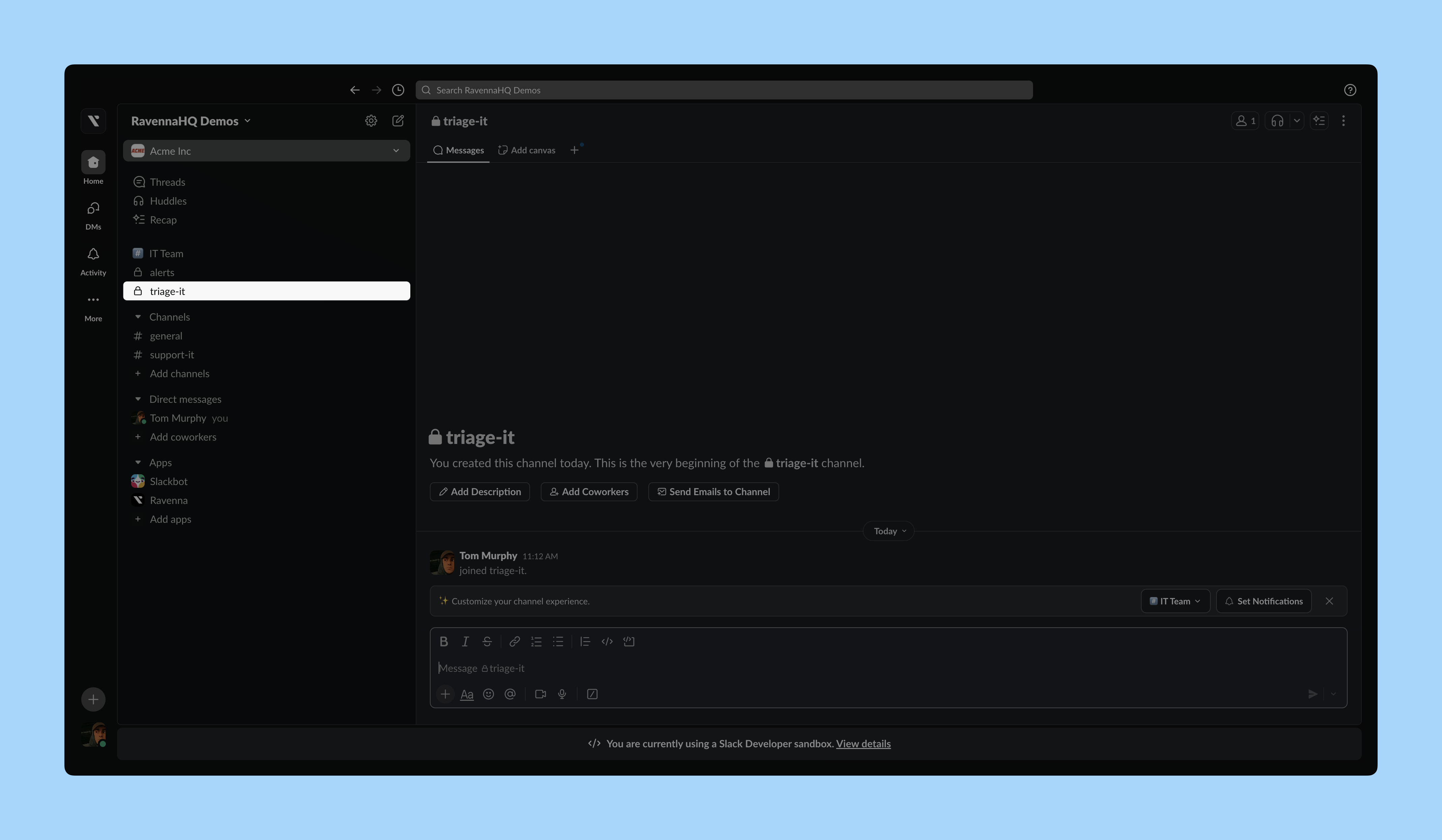
Create a private Slack channel
Create a private Slack channel for triage if you do not have one. This example sets one up for the IT Operations team, and it becomes the main place responders are alerted to new tickets in the workspace.
2
Invite Ravenna to the channel
Send /invite @Ravenna in the channel.
3
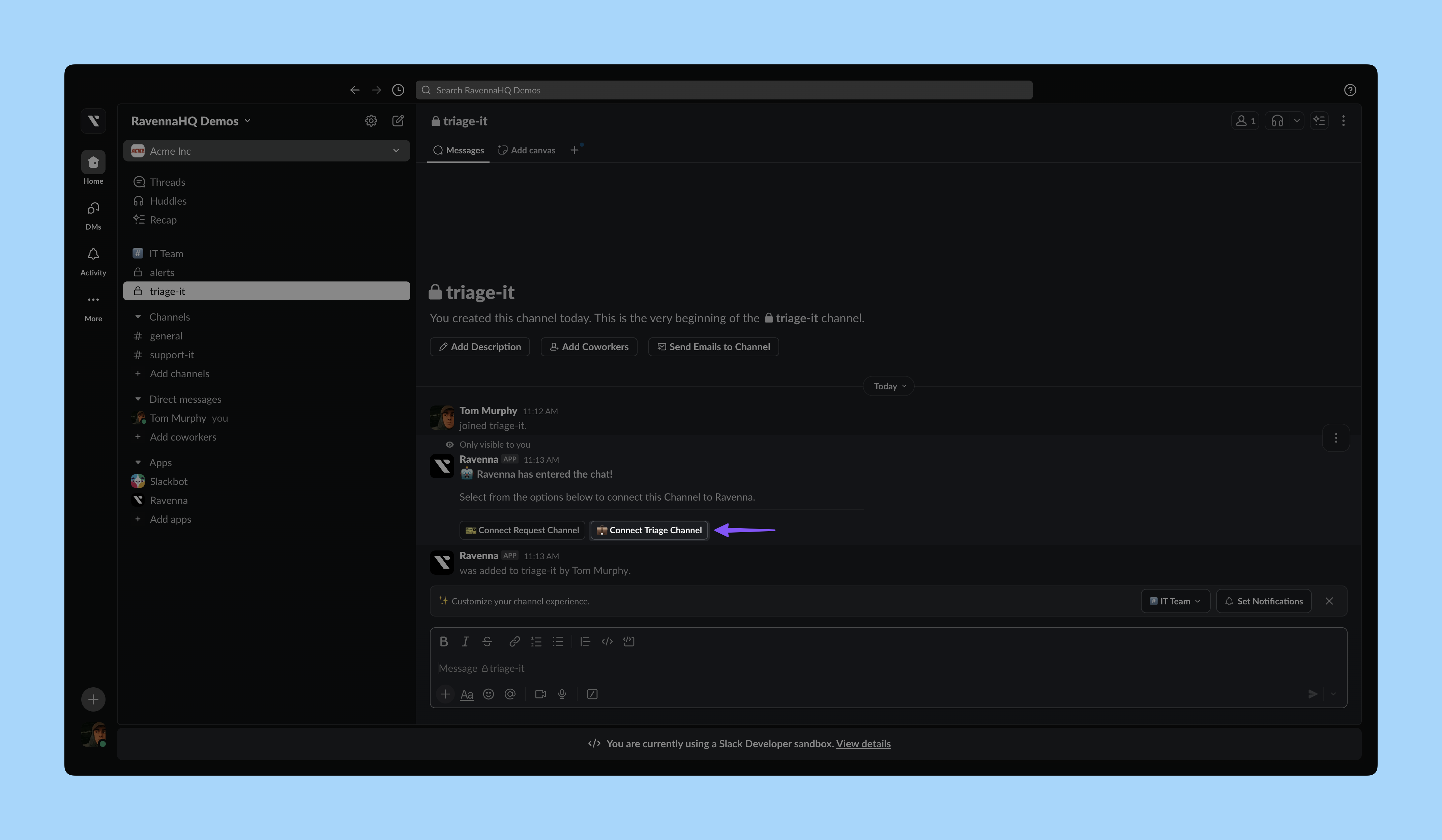
Connect it as a triage channel
Ravenna replies with a message only you can see. Click Connect Agent Channel.
Select your workspace and click Save.
4
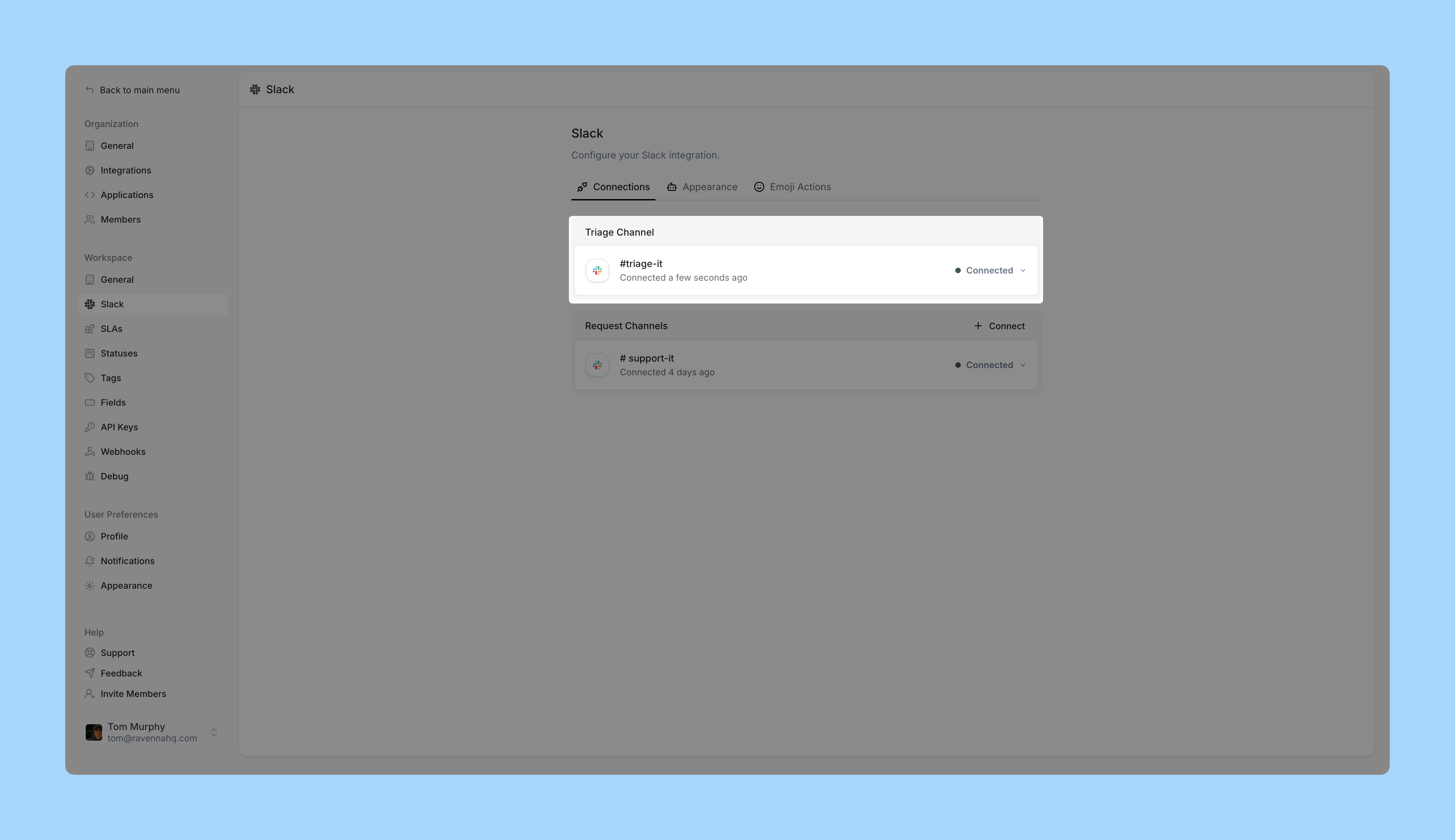
Confirm it in workspace settings
In Ravenna, open your workspace settings and click Slack in the left sidebar. Your triage channel appears there.
5
Send a test ticket
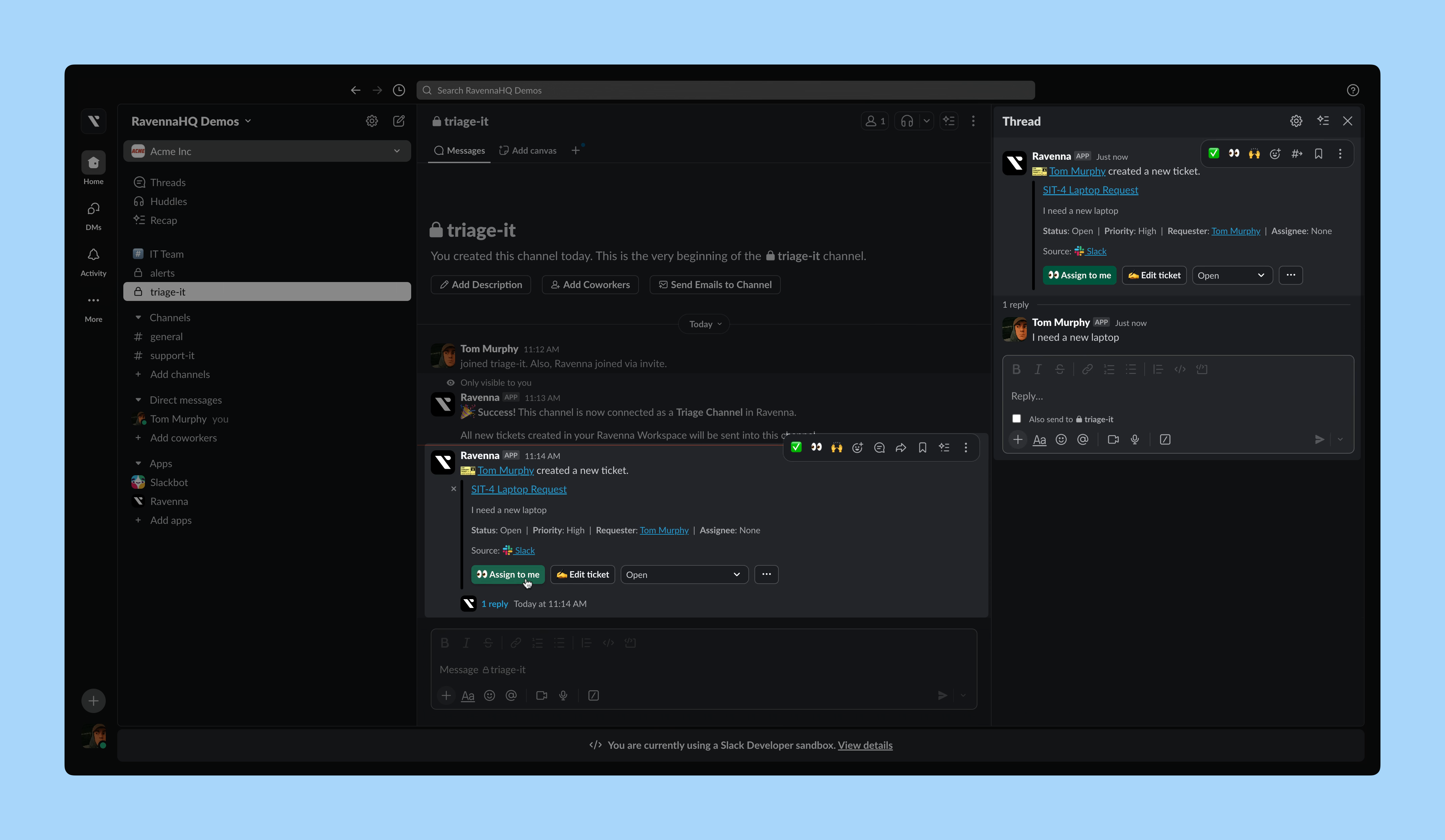
Send a message in your request channel, for example #ask-it, to create a test ticket. A notification appears in the triage channel.
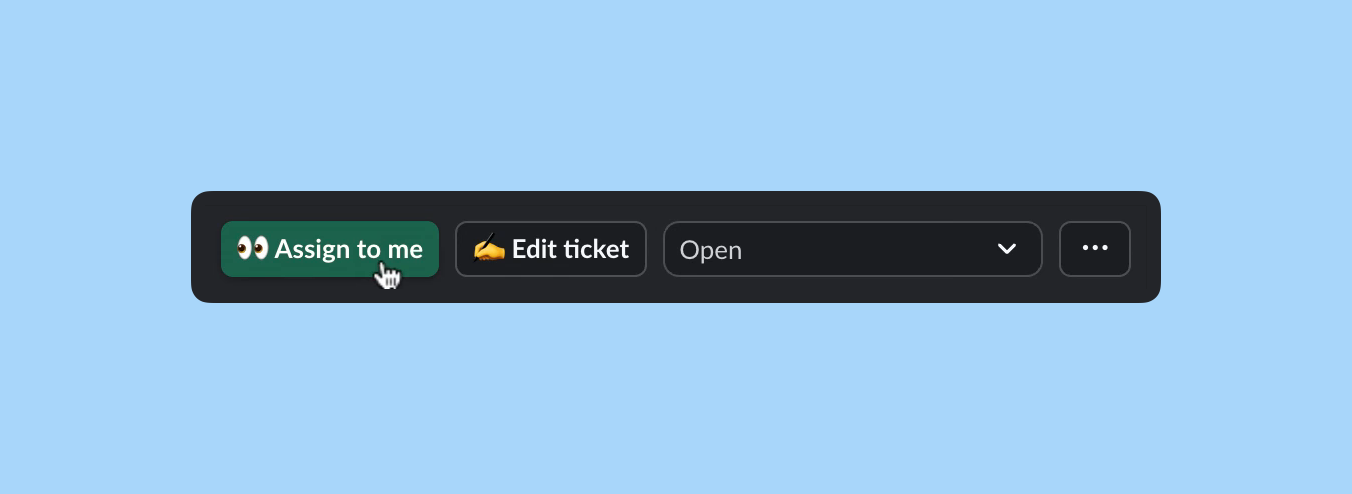
This mirror looks like the one in the request channel but carries extra action buttons for responders.
Both. The triage channel is the push notification, useful for teams who live in Slack and want to know the moment something arrives. Saved views in Ravenna are the pull, useful for working a backlog. Most teams set up an Unassigned view alongside the triage channel and use whichever suits the moment.