

- Interactive walkthrough
- Step-by-step
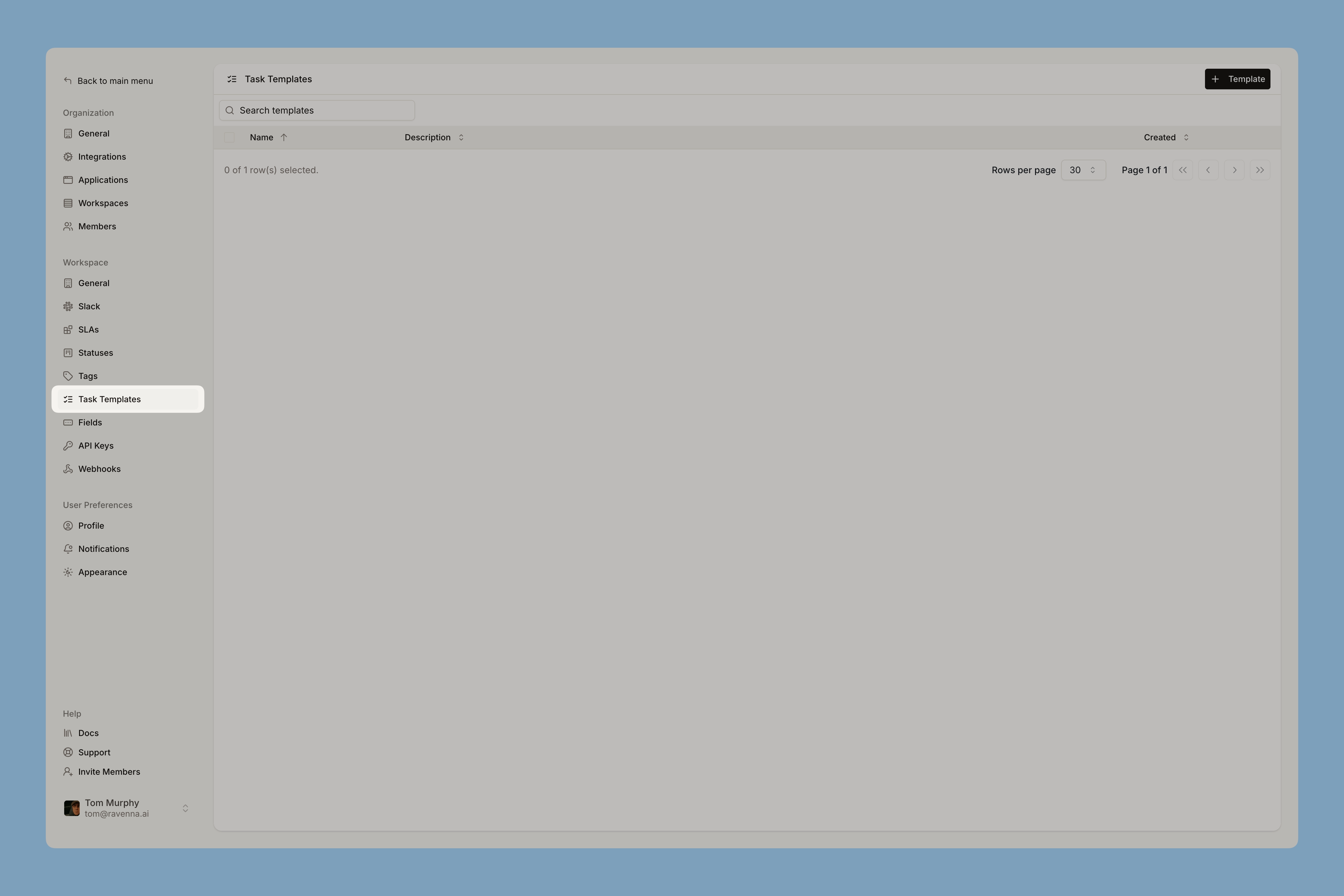
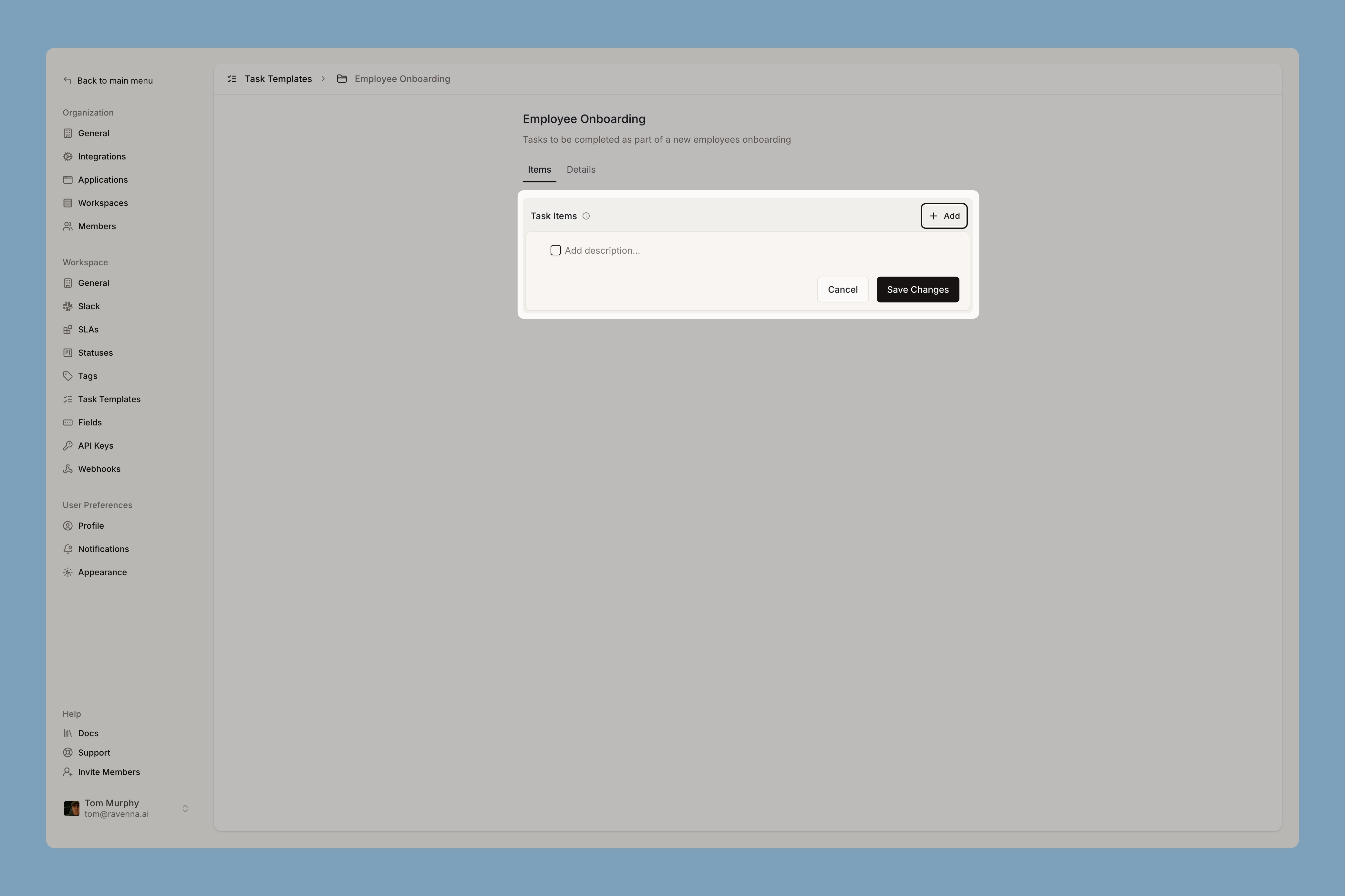
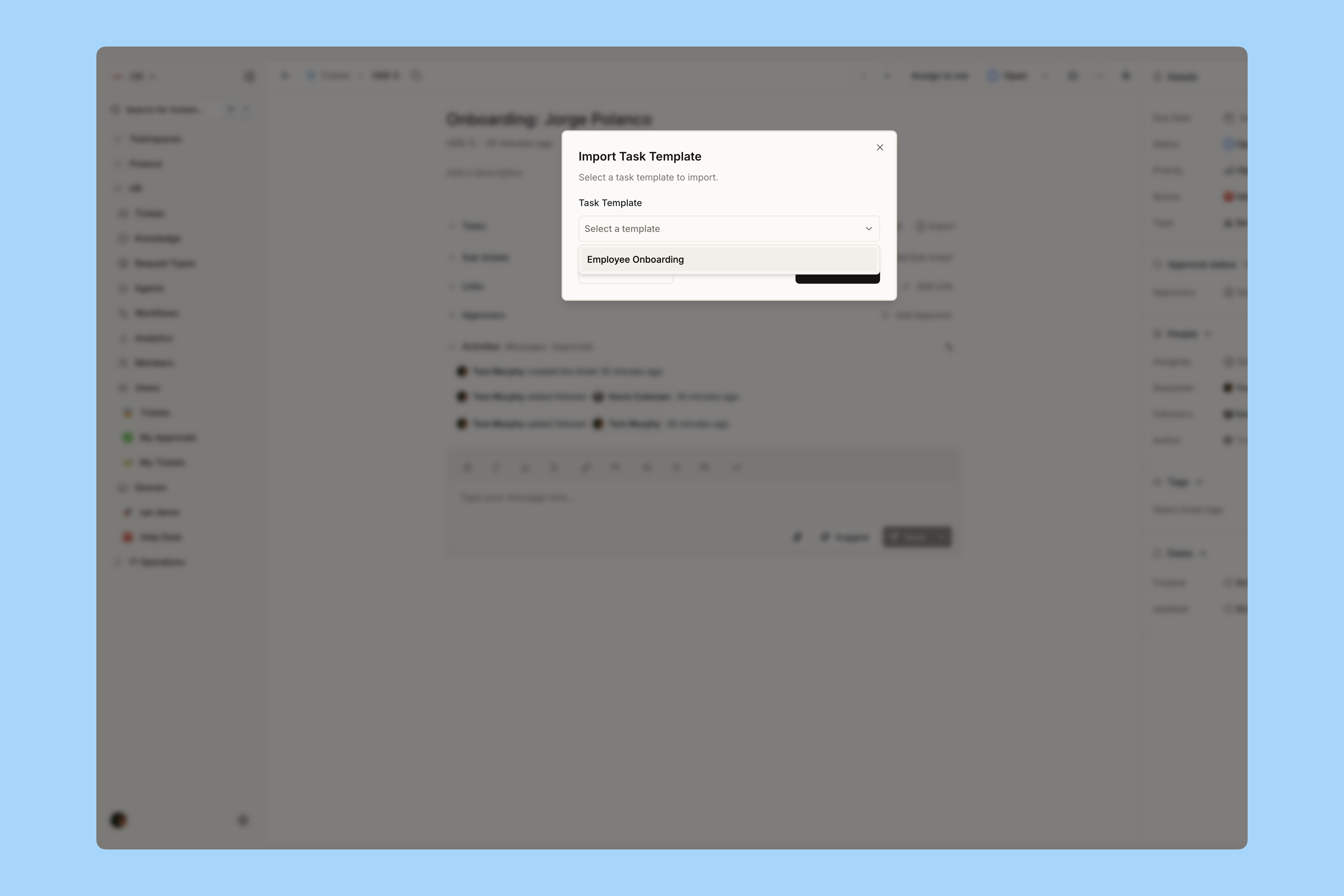
Adding tasks without a template
Any ticket can carry ad hoc tasks. Open the Tasks section, click Add Task, and enter a description.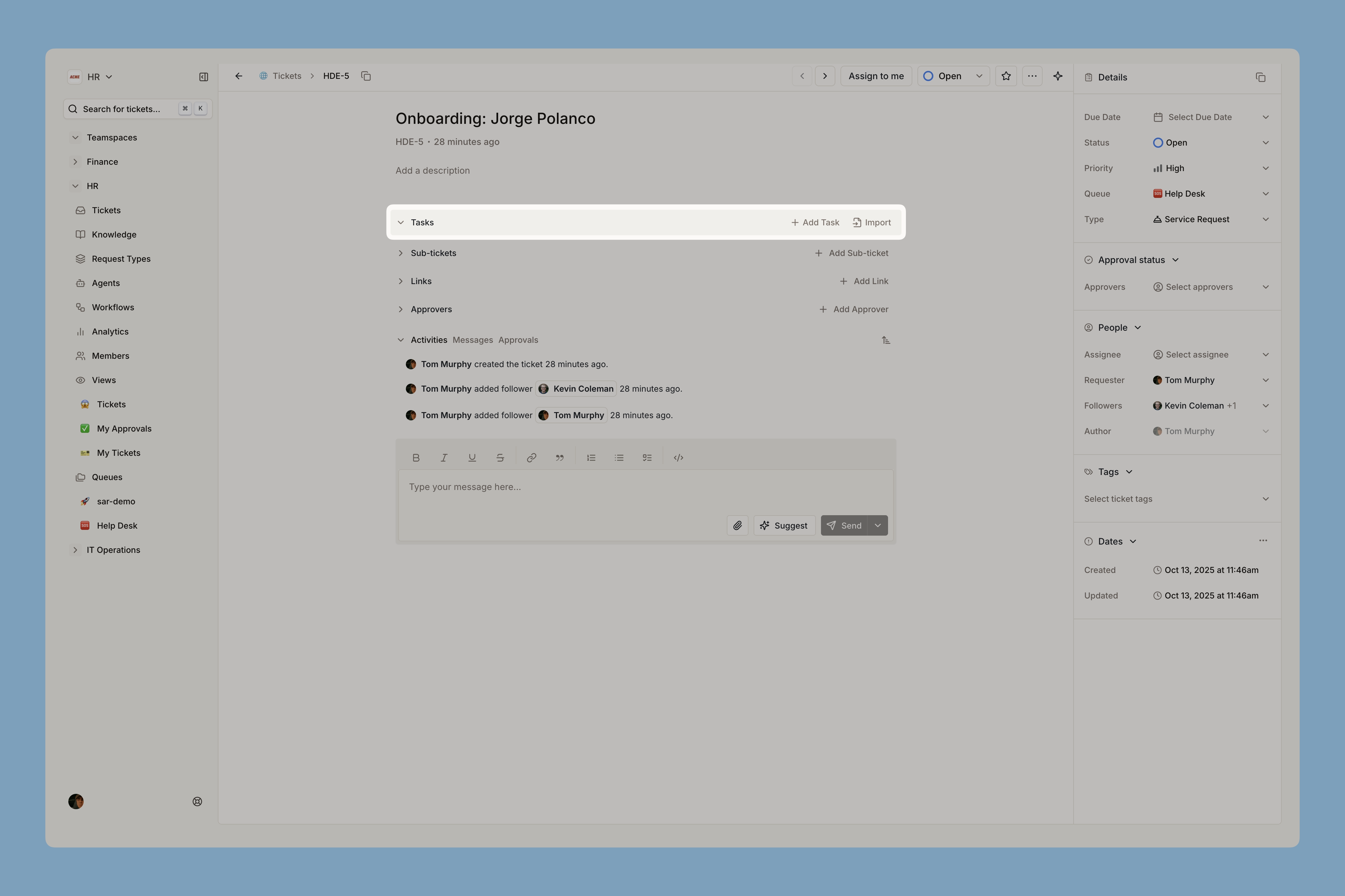
- Assigning someone to a task makes them a follower on the ticket. This cannot be turned off, and it is usually what you want.
- Click + on a task to nest subtasks, up to three levels deep.
- Tasks display in creation order and cannot be reordered afterwards, so add them in the order they should happen.

When a step gets skipped
Cancel the task rather than deleting it. Cancelling keeps the row on the ticket in a cancelled state, so the record still shows the step was considered and dropped. Hover the task, open the row action menu, and choose Cancel task. Restore task puts it back. Cancelled tasks are frozen: description, assignees, and the checkbox are locked until restored. Completed tasks cannot be cancelled directly, so reopen first. If your workspace’s Close ticket task policy is set to cancel remaining tasks, moving a ticket to Done or Closed prompts you to cancel everything still open in one go. The default leaves tasks open.Learn more about tasks and subtasks and the close ticket task policy
Letting Copilot and agents work the checklist
Tasks are available to automation, which is what makes templates worth building:-
Ask Copilot to apply a template, add a step, reassign one, or tell you what is still open. Try it on a real onboarding ticket.
Apply the New hire onboarding template to this ticket and assign the hardware steps to me.
What onboarding tasks are still open across my tickets this week?
- Agents can read a ticket’s full checklist without a separate lookup, create and update tasks, complete or reopen several at once, and apply a template.
- Workflow actions can create and complete tasks, which is how onboarding runs itself. See employee onboarding.
Learn more about tasks in automation