> ## Documentation Index
> Fetch the complete documentation index at: https://docs.ravenna.ai/llms.txt
> Use this file to discover all available pages before exploring further.
# Applications
> Build an application catalog in Ravenna with access levels, approval workflows, and identity provider mappings to govern access requests.
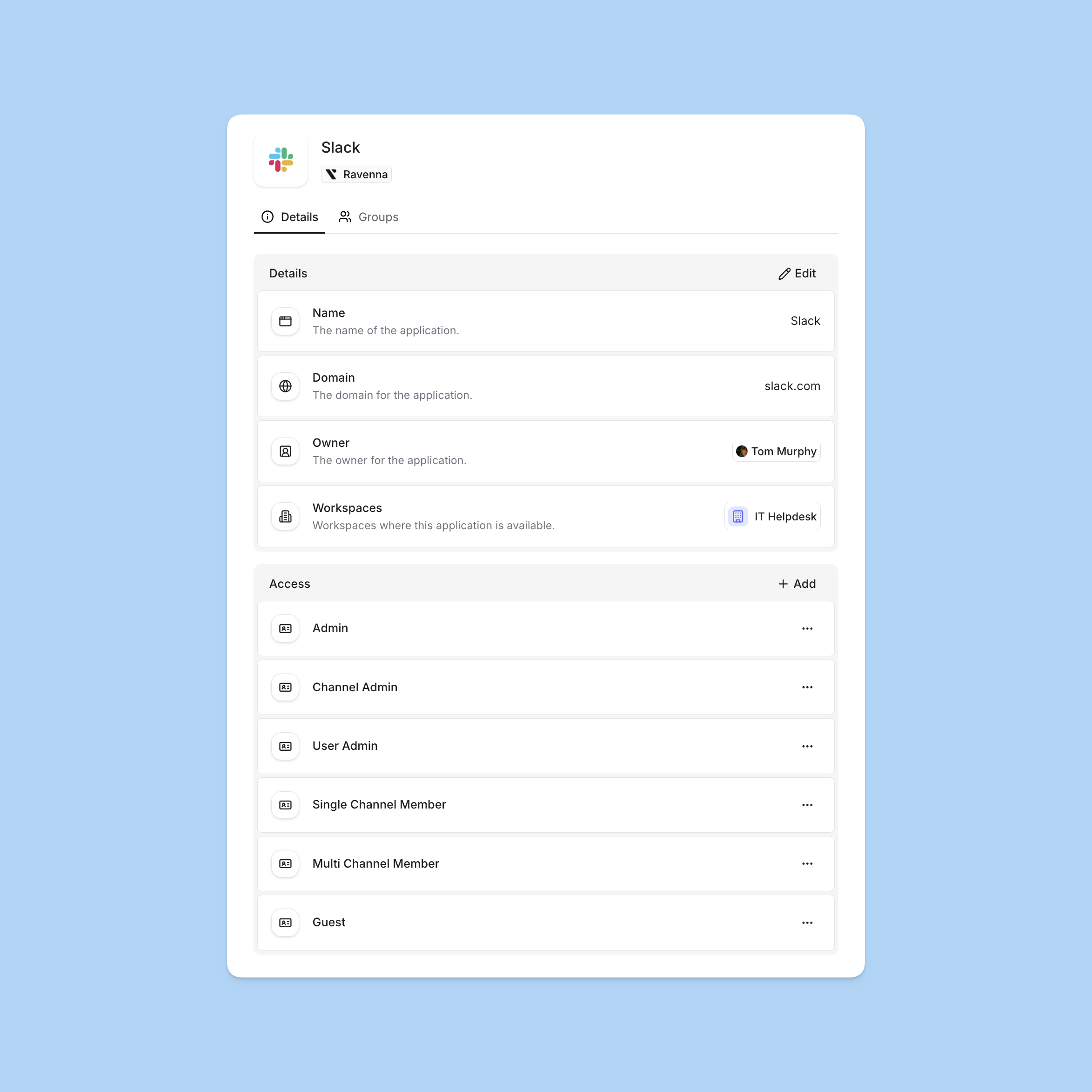 Applications represent the external tools and services your organization uses. By defining applications in Ravenna with their corresponding access levels, you create a structured catalog that supports automated access request workflows and maintains proper governance controls.
## Mental model
An application in Ravenna represents an external tool or service that your organization uses (e.g., GitHub, Salesforce, AWS). Each application has one or more **access levels** that define the permission tiers users can request (e.g., Admin, Editor, Viewer).
Applications are the access catalog. They answer the question: "What can users request access to, and at what permission level?"
Key relationships:
* One organization has many applications.
* One application has many access levels.
* Each access level can map to an identity provider group (Okta group, Google Group) for automated provisioning.
* Each access level has an assignment strategy that controls how approvers are assigned.
* Applications are organization-scoped but can be made visible in specific workspaces.
Applications can be created manually or synced automatically from identity providers (Okta, Google Workspace, Microsoft Entra ID). Synced applications stay in sync with the IdP but can have custom display names.
***
## Access level design guidance
**When to create separate access levels:**
* The application has distinct permission tiers that require different approval processes (e.g., Viewer vs Admin).
* Different groups of people should approve different permission levels.
* You need to track which permission level was granted for audit purposes.
**When a single access level is sufficient:**
* The application has a single permission model (you either have access or you do not).
* All access requests go through the same approval process regardless of what the user needs.
**Naming patterns:**
* Use names that match how your organization talks about permissions: "Admin", "Editor", "Viewer", "Member".
* Include the scope if the application has multiple contexts: "Repo Admin", "Org Member", "Billing Admin".
* Avoid generic names like "Level 1" or "Tier A" that do not communicate what access is granted.
***
## Assignment strategy selection
Each access level has an assignment strategy that controls how approvers are assigned to access request tickets.
| Strategy | Approvers assigned | Approval required from | Best for |
| --------------- | ------------------------ | -------------------------- | ----------------------------------------------------------- |
| **Auto** | System bot (automatic) | None, approved immediately | Low-risk apps, dev/test environments, self-service tools |
| **All** | All configured approvers | Any one approver | Multiple qualified approvers, fastest response time needed |
| **Round Robin** | One approver (rotated) | The assigned approver | Balancing workload, avoiding bottlenecks, fair distribution |
You can configure different strategies for different access levels within the same application. Common pattern: use "Auto" for basic Member access and "All" or "Round Robin" for Admin access.
***
## Identity provider integration patterns
Access levels can map to IdP groups for automated provisioning after approval.
**Okta:**
* Map each access level to an Okta group.
* After approval, use the "Add Users to Group" or "Add Users to Application" workflow actions.
* Okta group membership can then grant application access via Okta's assignment rules.
**Google Workspace:**
* Map each access level to a Google Group.
* After approval, use the "Add Users to Group" workflow action.
* Google Group membership can then grant access to Google Workspace apps, shared drives, and other resources.
**Without IdP integration:**
* Access levels still work for approval routing and audit trails.
* Provisioning must be done manually after approval (e.g., an assignee manually adds the user to the application).
***
## Applications in automation
**Forms:** Use the "Application select" and "Access level select" custom field types in forms. These fields connect directly to the application catalog and allow users to select which application and permission level they need.
**Workflows:** Access form field data (application, access level) as dynamic values in workflow actions. Common pattern: use conditional logic to branch based on the selected application or access level, then route to the appropriate approvers and provisioning actions.
When a workflow step references an application, you can filter the application list by:
* **Source**: The integration the application is synced from (for example, Okta, Google Workspace, Microsoft Entra ID), or Ravenna for applications created directly in Ravenna. Use this to scope a step to applications from a single identity provider.
* **Provisioning method**: How access to the application is provisioned (for example, group-based or manual). Use this to branch workflows between automated and manual provisioning paths.
* **Owner**: The application owner. Use this to route steps to the team responsible for the application.
* **Approver**: The role-based approver configured on the application.
**Agent rules:** The agent can present access request forms during conversation. When a user says "I need access to GitHub," the agent can present the appropriate form pre-filled with the application. Reference forms with `@Form Name` in agent rules.
**Application owner:** Each application has an optional owner, which can be either a single user or a user group. This can be used in workflow conditions to route approval requests to the application owner automatically. When the owner is a group, every member of the group is resolved as an owner.
**Application approver:** Each application also has an optional approver, which can be either a single user or a user group. When an access level or approval template uses the **Application Approver** role-based approver, requests resolve to this user or to all members of the selected group. If you leave it empty, Ravenna falls back to the application owner. Configure the approver in **Settings** > **Applications** > select an application.
The owner and approver fields each accept either a user or a user group, but not both at the same time. Selecting one clears the other.
**Post provisioning message:** Each application has an optional rich text `postProvisioningMessage`. When set, it replaces Ravenna's default confirmation message on the ticket after access is fully or partially provisioned. Use it to share login URLs, onboarding docs, or follow-up steps specific to the application. It is not sent on rejection or failed provisioning.
***
## Constraints and gotchas
* Applications are organization-scoped. All workspaces in an organization share the same application catalog, but workspace visibility is configurable per application.
* Access levels are specific to one application. There is no shared or global access level concept.
* Synced applications (from Okta, Google Workspace, Microsoft Entra ID) maintain their original name for sync purposes. Custom display names are cosmetic only and do not affect integration behavior.
* Applications have an **Active** or **Archived** status. Archived applications are hidden from request forms and the applications table by default; surface them by adding a status filter for Archived. Use bulk archive and bulk unarchive from the applications table, or the **Archive** and **Unarchive** actions on the application details page, to manage status.
* While an application is archived, Ravenna rejects modifications to its access levels and access requests with an `APPLICATION_NOT_ACTIVE` error. This includes creating or unarchiving access levels, and submitting, approving, rejecting, or extending access requests. Unarchive the application before performing these operations.
* Applications can also be permanently deleted from the application details page using the **Delete** action. Deletion is irreversible and removes the application, its access levels, and its IdP mappings. Prefer archiving when historical records, approval history, or ticket references must be preserved.
* Access levels also have an **Active** or **Archived** status. Archived access levels are hidden from request forms but retain their approval history and identity provider mappings. Use bulk archive and bulk unarchive from the **Access Levels** tab to manage many at once.
* Archiving an application preserves its access levels, approval history, and identity provider mappings. It does not revoke any access already provisioned through it. Revoking previously granted access must be handled separately in the IdP.
* Deleting an application permanently removes it along with its access levels and IdP mappings. It does not revoke any previously provisioned access; revocation must be handled separately in the IdP.
* Assignment strategies are configured per access level, not per application. Different levels within the same application can have different approval workflows.
* The "Auto" assignment strategy approves immediately with no human review. Use it only for low-risk access where automatic approval is acceptable.
* Access level mappings to IdP groups require an active integration. If the integration is disconnected, the mapping still exists but provisioning actions will fail.
* Application details (rich text notes) appear in hover cards when users view applications in custom fields. Use this to provide context about what the application is and when to request it.
Applications represent the external tools and services your organization uses. By defining applications in Ravenna with their corresponding access levels, you create a structured catalog that supports automated access request workflows and maintains proper governance controls.
## Mental model
An application in Ravenna represents an external tool or service that your organization uses (e.g., GitHub, Salesforce, AWS). Each application has one or more **access levels** that define the permission tiers users can request (e.g., Admin, Editor, Viewer).
Applications are the access catalog. They answer the question: "What can users request access to, and at what permission level?"
Key relationships:
* One organization has many applications.
* One application has many access levels.
* Each access level can map to an identity provider group (Okta group, Google Group) for automated provisioning.
* Each access level has an assignment strategy that controls how approvers are assigned.
* Applications are organization-scoped but can be made visible in specific workspaces.
Applications can be created manually or synced automatically from identity providers (Okta, Google Workspace, Microsoft Entra ID). Synced applications stay in sync with the IdP but can have custom display names.
***
## Access level design guidance
**When to create separate access levels:**
* The application has distinct permission tiers that require different approval processes (e.g., Viewer vs Admin).
* Different groups of people should approve different permission levels.
* You need to track which permission level was granted for audit purposes.
**When a single access level is sufficient:**
* The application has a single permission model (you either have access or you do not).
* All access requests go through the same approval process regardless of what the user needs.
**Naming patterns:**
* Use names that match how your organization talks about permissions: "Admin", "Editor", "Viewer", "Member".
* Include the scope if the application has multiple contexts: "Repo Admin", "Org Member", "Billing Admin".
* Avoid generic names like "Level 1" or "Tier A" that do not communicate what access is granted.
***
## Assignment strategy selection
Each access level has an assignment strategy that controls how approvers are assigned to access request tickets.
| Strategy | Approvers assigned | Approval required from | Best for |
| --------------- | ------------------------ | -------------------------- | ----------------------------------------------------------- |
| **Auto** | System bot (automatic) | None, approved immediately | Low-risk apps, dev/test environments, self-service tools |
| **All** | All configured approvers | Any one approver | Multiple qualified approvers, fastest response time needed |
| **Round Robin** | One approver (rotated) | The assigned approver | Balancing workload, avoiding bottlenecks, fair distribution |
You can configure different strategies for different access levels within the same application. Common pattern: use "Auto" for basic Member access and "All" or "Round Robin" for Admin access.
***
## Identity provider integration patterns
Access levels can map to IdP groups for automated provisioning after approval.
**Okta:**
* Map each access level to an Okta group.
* After approval, use the "Add Users to Group" or "Add Users to Application" workflow actions.
* Okta group membership can then grant application access via Okta's assignment rules.
**Google Workspace:**
* Map each access level to a Google Group.
* After approval, use the "Add Users to Group" workflow action.
* Google Group membership can then grant access to Google Workspace apps, shared drives, and other resources.
**Without IdP integration:**
* Access levels still work for approval routing and audit trails.
* Provisioning must be done manually after approval (e.g., an assignee manually adds the user to the application).
***
## Applications in automation
**Forms:** Use the "Application select" and "Access level select" custom field types in forms. These fields connect directly to the application catalog and allow users to select which application and permission level they need.
**Workflows:** Access form field data (application, access level) as dynamic values in workflow actions. Common pattern: use conditional logic to branch based on the selected application or access level, then route to the appropriate approvers and provisioning actions.
When a workflow step references an application, you can filter the application list by:
* **Source**: The integration the application is synced from (for example, Okta, Google Workspace, Microsoft Entra ID), or Ravenna for applications created directly in Ravenna. Use this to scope a step to applications from a single identity provider.
* **Provisioning method**: How access to the application is provisioned (for example, group-based or manual). Use this to branch workflows between automated and manual provisioning paths.
* **Owner**: The application owner. Use this to route steps to the team responsible for the application.
* **Approver**: The role-based approver configured on the application.
**Agent rules:** The agent can present access request forms during conversation. When a user says "I need access to GitHub," the agent can present the appropriate form pre-filled with the application. Reference forms with `@Form Name` in agent rules.
**Application owner:** Each application has an optional owner, which can be either a single user or a user group. This can be used in workflow conditions to route approval requests to the application owner automatically. When the owner is a group, every member of the group is resolved as an owner.
**Application approver:** Each application also has an optional approver, which can be either a single user or a user group. When an access level or approval template uses the **Application Approver** role-based approver, requests resolve to this user or to all members of the selected group. If you leave it empty, Ravenna falls back to the application owner. Configure the approver in **Settings** > **Applications** > select an application.
The owner and approver fields each accept either a user or a user group, but not both at the same time. Selecting one clears the other.
**Post provisioning message:** Each application has an optional rich text `postProvisioningMessage`. When set, it replaces Ravenna's default confirmation message on the ticket after access is fully or partially provisioned. Use it to share login URLs, onboarding docs, or follow-up steps specific to the application. It is not sent on rejection or failed provisioning.
***
## Constraints and gotchas
* Applications are organization-scoped. All workspaces in an organization share the same application catalog, but workspace visibility is configurable per application.
* Access levels are specific to one application. There is no shared or global access level concept.
* Synced applications (from Okta, Google Workspace, Microsoft Entra ID) maintain their original name for sync purposes. Custom display names are cosmetic only and do not affect integration behavior.
* Applications have an **Active** or **Archived** status. Archived applications are hidden from request forms and the applications table by default; surface them by adding a status filter for Archived. Use bulk archive and bulk unarchive from the applications table, or the **Archive** and **Unarchive** actions on the application details page, to manage status.
* While an application is archived, Ravenna rejects modifications to its access levels and access requests with an `APPLICATION_NOT_ACTIVE` error. This includes creating or unarchiving access levels, and submitting, approving, rejecting, or extending access requests. Unarchive the application before performing these operations.
* Applications can also be permanently deleted from the application details page using the **Delete** action. Deletion is irreversible and removes the application, its access levels, and its IdP mappings. Prefer archiving when historical records, approval history, or ticket references must be preserved.
* Access levels also have an **Active** or **Archived** status. Archived access levels are hidden from request forms but retain their approval history and identity provider mappings. Use bulk archive and bulk unarchive from the **Access Levels** tab to manage many at once.
* Archiving an application preserves its access levels, approval history, and identity provider mappings. It does not revoke any access already provisioned through it. Revoking previously granted access must be handled separately in the IdP.
* Deleting an application permanently removes it along with its access levels and IdP mappings. It does not revoke any previously provisioned access; revocation must be handled separately in the IdP.
* Assignment strategies are configured per access level, not per application. Different levels within the same application can have different approval workflows.
* The "Auto" assignment strategy approves immediately with no human review. Use it only for low-risk access where automatic approval is acceptable.
* Access level mappings to IdP groups require an active integration. If the integration is disconnected, the mapping still exists but provisioning actions will fail.
* Application details (rich text notes) appear in hover cards when users view applications in custom fields. Use this to provide context about what the application is and when to request it.